Compass Apply fills the form. You press submit.
A Chrome extension for your Compass account. On a company's application page, it fills in your details from your profile, attaches the resume you tailored for that role, and drafts answers to open questions from your real experience. You review every answer. It never submits.
I fill, you check.The submit button is all yours.
What it does on an application.
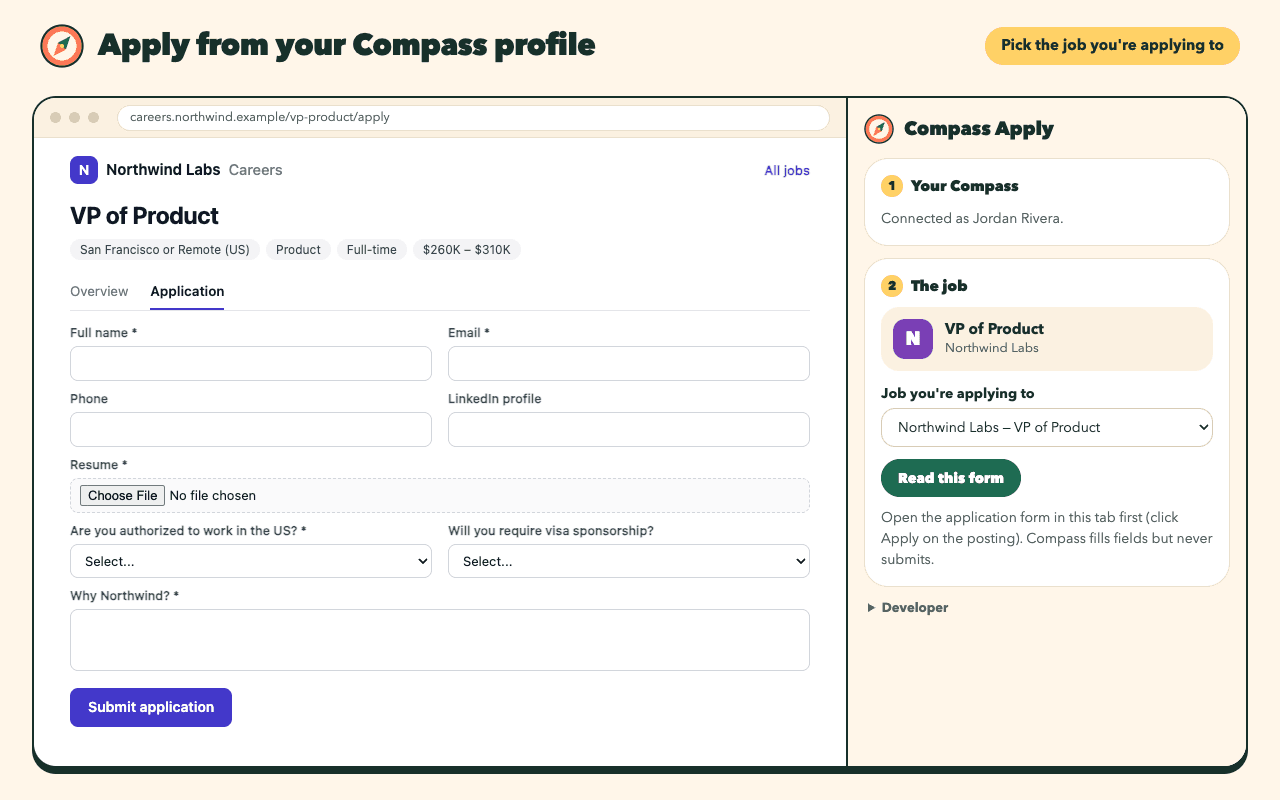
Open it on the company's application page. It finds the job you're tracking. 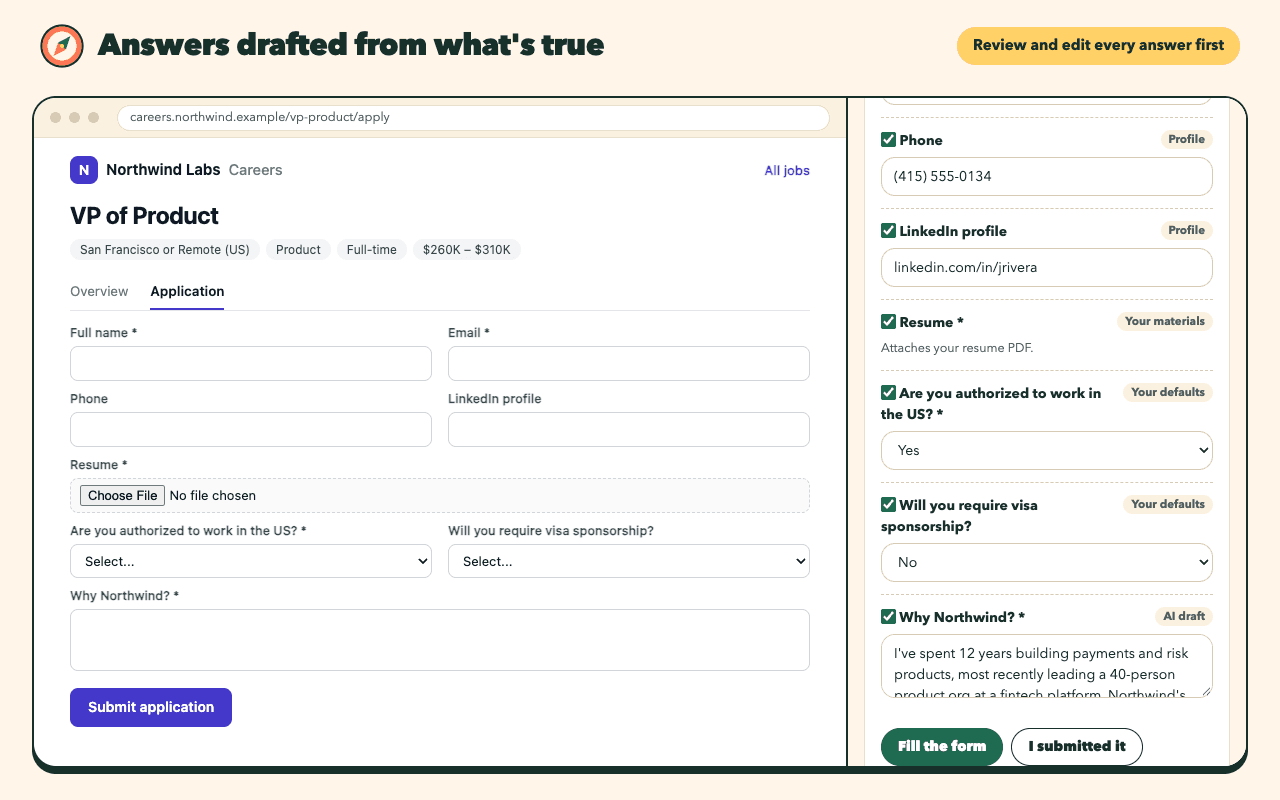
Every answer comes from your profile or materials. Check and edit each one. 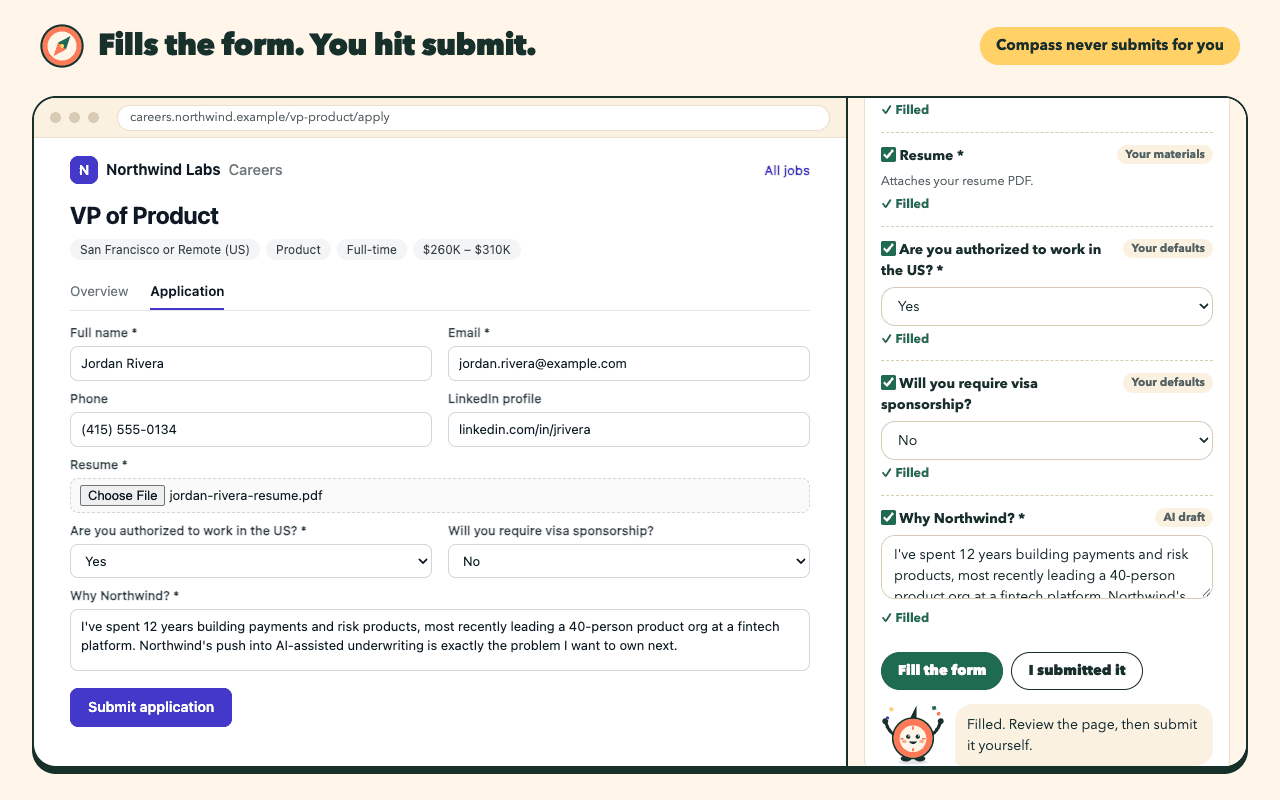
It fills the form and stops. You read it over and press submit.
- Works on the company's own application page
- Uses the profile, answers, and resume already in Compass
- Never submits. That click stays yours.
Install it in four steps.
Add it from the Chrome Web Store
Use the button above in Chrome on a computer. Chrome asks you to confirm; Compass Apply is free.
Pin it to the toolbar
Click the puzzle-piece icon at the top right of Chrome, then the pin next to Compass Apply, so the Compass icon stays in view.
Open the side panel on a job application
Go to a role you're tracking in Compass, click Apply on the company's site so the form is showing, then click the Compass icon. The panel opens beside the page. The first time on a site, it asks for permission to read that site.
Sign in once
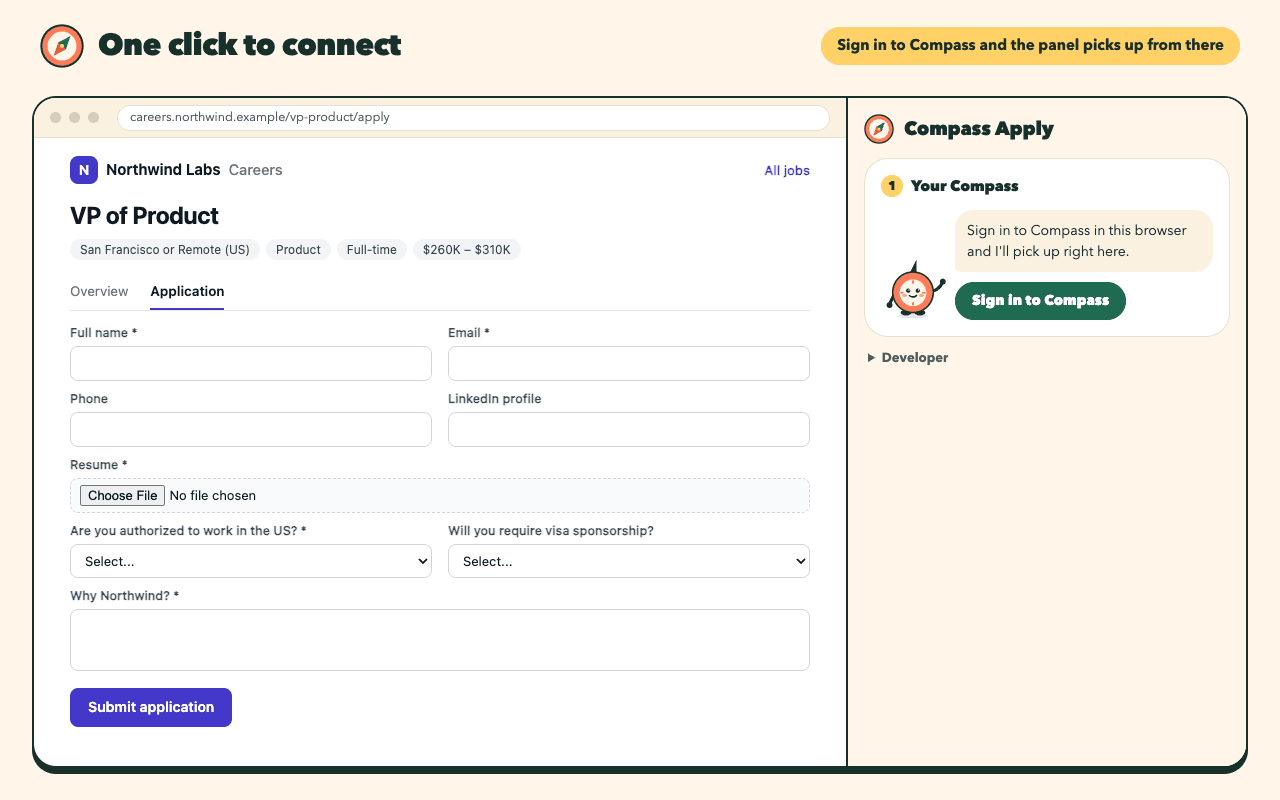
The panel asks you to sign in to Compass in a new tab. After that it uses the same sign-in, so it just opens and carries on.
Compass Apply reads a page only when you open its panel there and ask it to, sends the form's questions only to your own Compass account, and doesn't read your browsing history. Details are in section 8 of the privacy policy.
Meet Pip.
Your guide in Compass and in the extension, in seven seconds.